Back to site

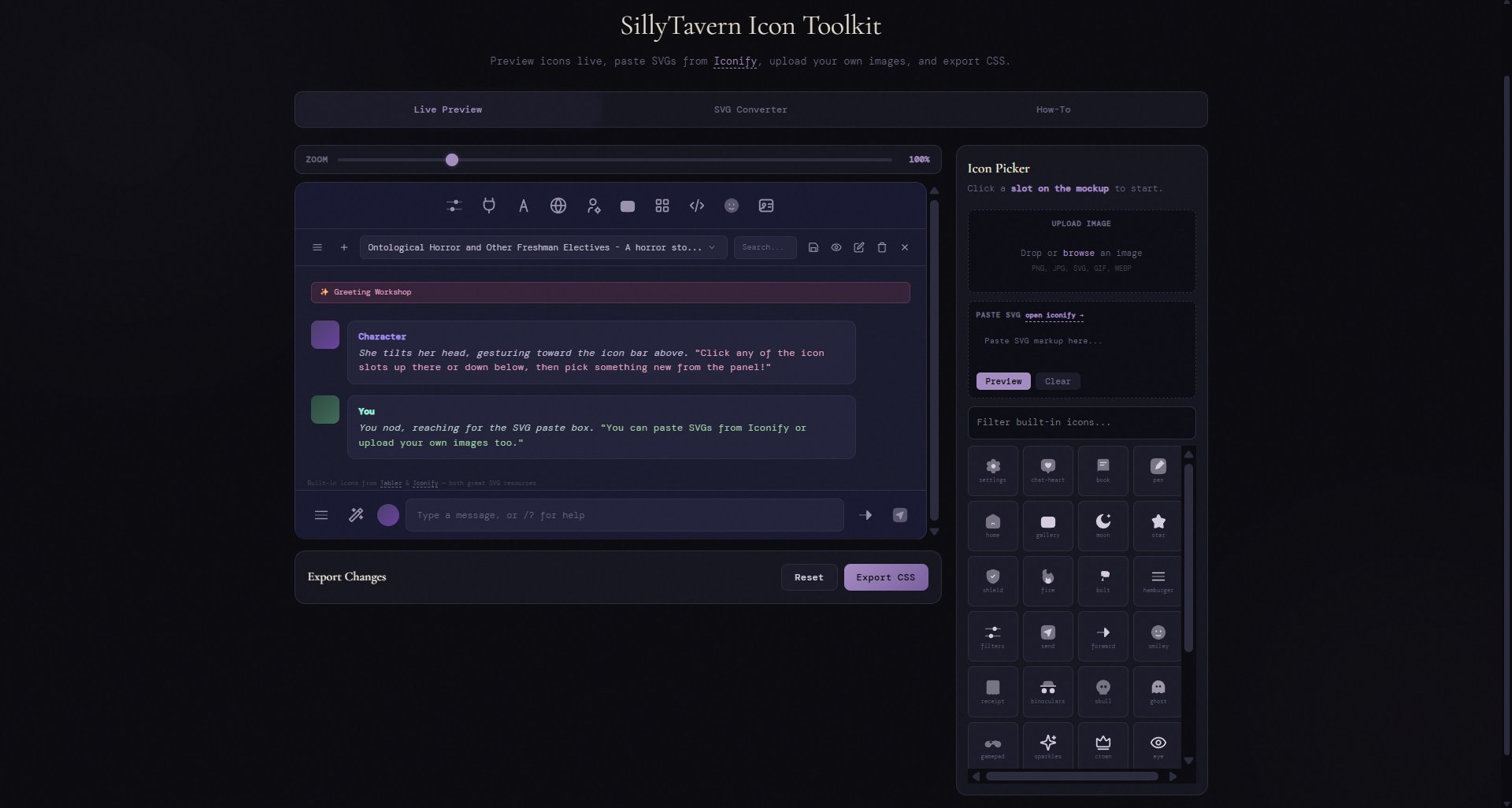
SillyTavern Icon Toolkit

Preview icons live, paste SVGs from Iconify, upload your own images, and export CSS.

Zoom 100%
API Config
API Connect
Adv Format
World Info
User Settings
Backgrounds
Extensions
Quick Replies
Persona
Char Manage
Ontological Horror and Other Freshman Electives - A horror sto...
✨ Greeting Workshop
Character
She tilts her head, gesturing toward the icon bar above. "Click any of the icon slots up there or down below, then pick something new from the panel!"
You
You nod, reaching for the SVG paste box. "You can paste SVGs from Iconify or upload your own images too."
Options
Ext Menu
Type a message, or /? for help
Continue
Send

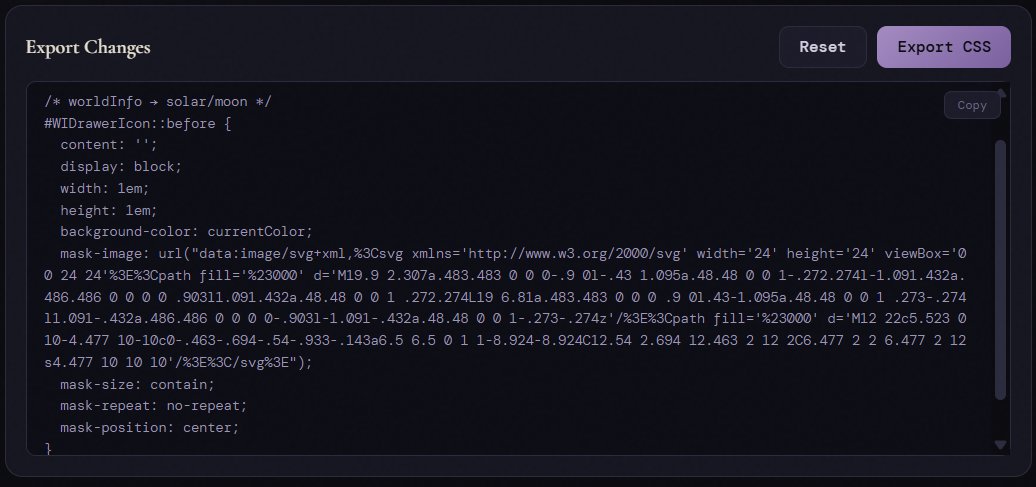
Export Changes

Icon Picker

Click a slot on the mockup to start.
Upload Image
Drop or browse an image
PNG, JPG, SVG, GIF, WEBP
Custom
Ready

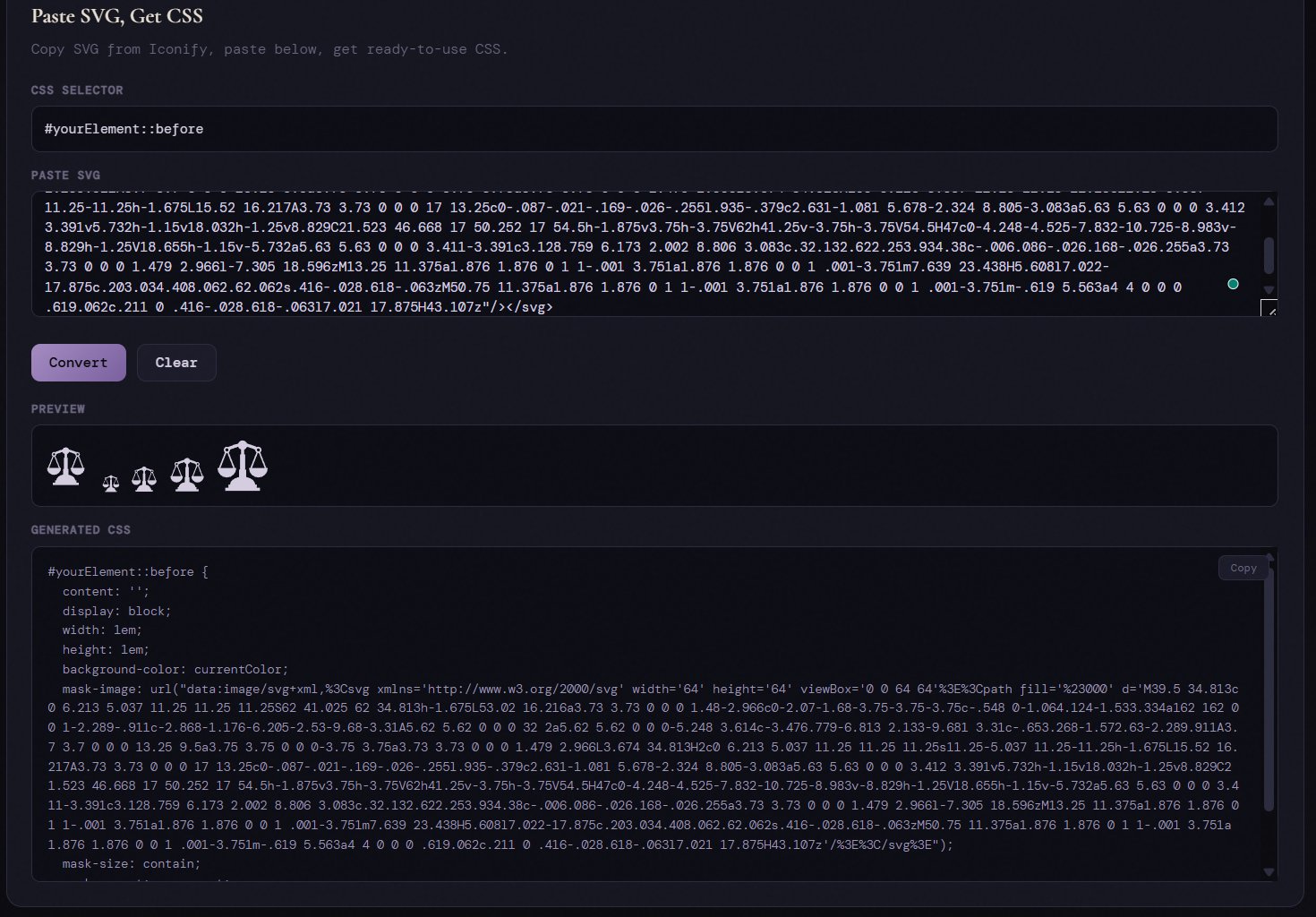
Paste SVG, Get CSS

Copy SVG from Iconify, paste below, get ready-to-use CSS.

Getting Icons into SillyTavern

1
Browse Iconify. Go to icon-sets.iconify.design. The default theme uses Solar icons.
2
Copy SVG. Click an icon, then click the SVG copy button.
3
Paste into the picker. In the Live Preview tab, paste the SVG into the "Paste SVG" box and hit Preview, or upload your own image (PNG, JPG, etc). Then click Apply to set it on your selected slot.
4
Or use the SVG Converter tab to get a standalone CSS block with your own selector.
5
Export and paste into your SillyTavern-Icons.css file and reload.
Note on images: Uploaded PNGs/JPGs display directly as background-image instead of mask-image, so they'll show in their original colors rather than inheriting the theme color. SVGs work best for theme-matched icons.
Tip: mask-image makes SVG icons inherit currentColor, so they auto-match your theme.